Self-directed WordPress debugging lab
I created a controlled mobile layout issue on a WordPress test site, diagnosed it using Chrome Developer Tools, and applied a targeted CSS fix.
The Problem
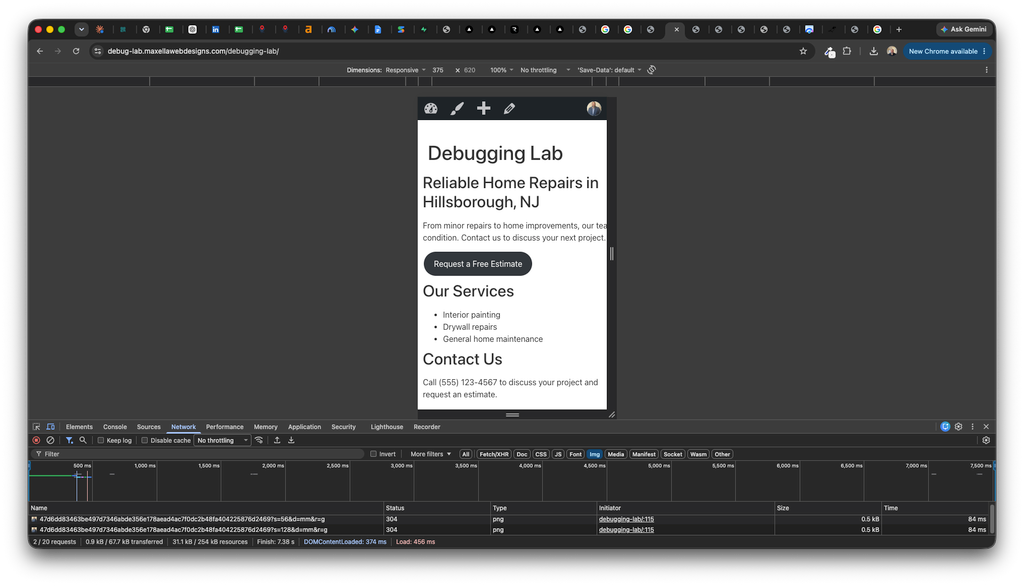
At a mobile viewport width of 375 pixels, the introductory paragraph extended beyond the right edge of the screen. Visitors could not read the full paragraph without moving sideways.
The headings, service list, and button still fit, helping narrow the investigation to the paragraph itself.
My Investigation
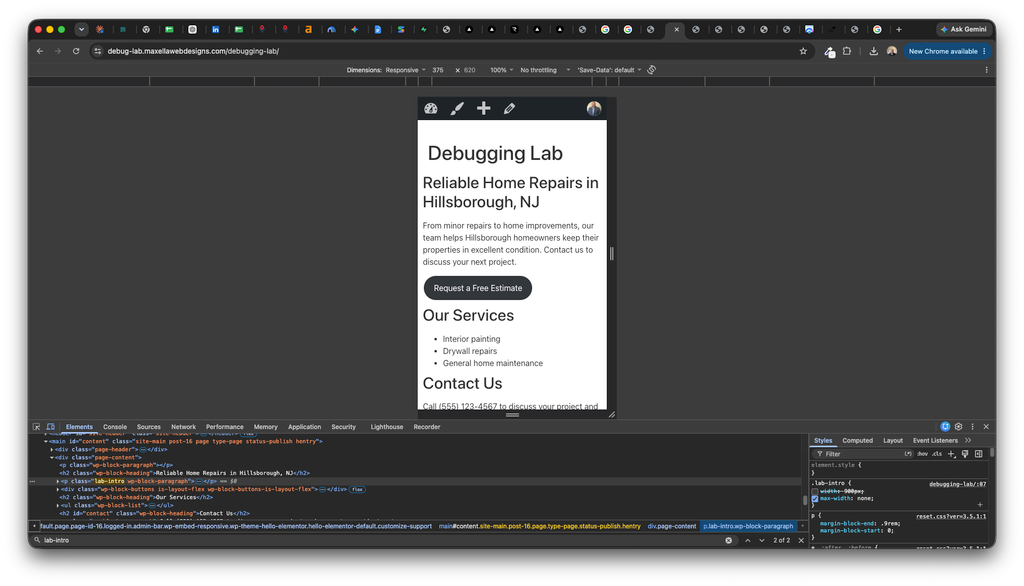
Using Chrome Developer Tools, I inspected the affected paragraph and identified its custom CSS class, lab-intro.
The applied CSS assigned the paragraph a fixed width of 900 pixels and removed its maximum-width constraint.
I temporarily disabled the width declaration in Developer Tools. The paragraph immediately wrapped within the mobile screen, confirming that the fixed width caused the overflow.
The Fix
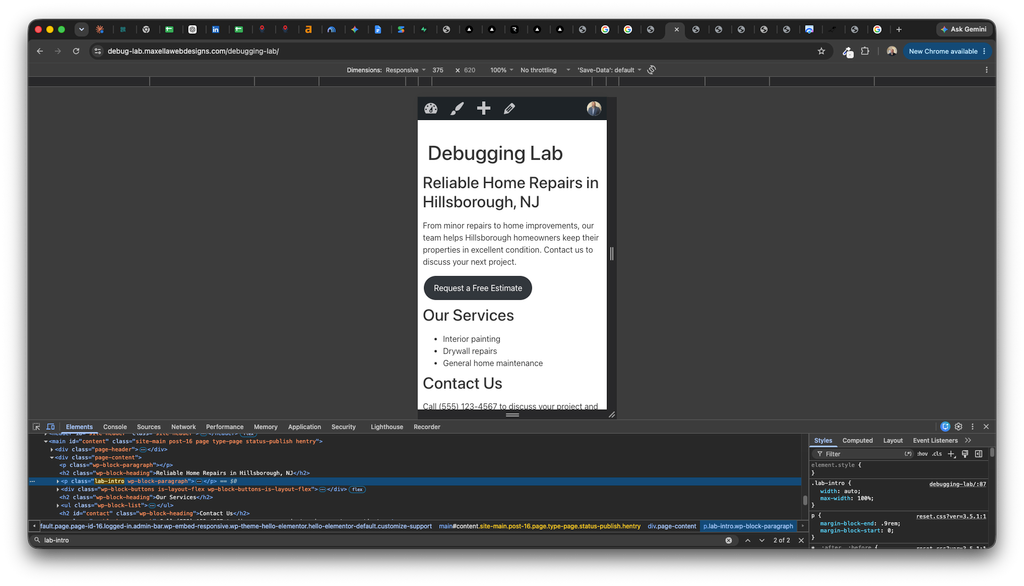
I replaced the fixed width with automatic sizing and limited the paragraph to the width of its container. I saved the change in WordPress’s Additional CSS settings.
This corrected the element responsible for the problem without hiding the overflowing content.
.lab-intro {
    width: auto;
    max-width: 100%;
}
The Result
The corrected paragraph fits within the 375-pixel mobile viewport and wraps into readable lines.
Skills Demonstrated
- Reproducing a responsive layout issue
- Inspecting HTML elements and applied CSS
- Isolating a faulty declaration
- Testing a change before saving it
- Applying a targeted WordPress CSS fix
Project Environment
WordPress, Hello Elementor theme, Gutenberg block editor, Chrome Developer Tools, and custom CSS.
This issue was intentionally introduced on a dedicated test site for training and portfolio demonstration.